SMAC - Processor Description

Please note: The chapter BEAM Scientific Data Processors provides a general description for all BEAM data processors. It describes the common graphical user interface (GUI), the command-line interface and the common processing request file format.
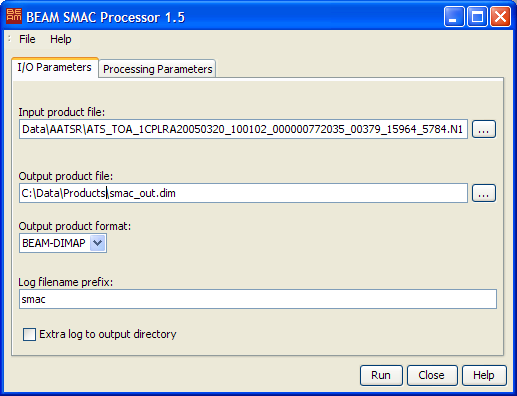
The SMAC In- and Output Parameters tab

  1. Input product file: Select the input product file by either typing the product path into the text filed or by pressing the file selection button to invoke a standard file dialog.
  2. Output product file: Select the output product file by either typing the product path into the text filed or by pressing the file selection button to invoke a standard file dialog.
  3. Output product format: Select one of the available output product formats.
  4. Log filename prefix: Select the prefix text used for the logfile written during processing. For a complete description of the logging capabilities please refer to the logging documentation.
  5. Extra log to output directory: Select whether to write an additional log file to the directory selected tfor the output product.

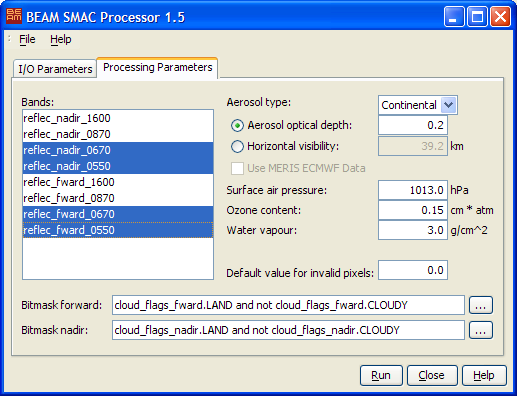
The SMAC Processing Parameters tab

  1. Bands: Select one or many bands to be atmospherically corrected from the predefined list of bands. Press "Shift" when clicking in the list to select a range of bands. Press "Ctrl" when clicking in the list to add a single band to the selection (only available when an input product is already selected).
  2. Aerosol type: select an aerosol type from the predefined list.
  3. Aerosol optical depth / Horizontal visibility: select the aerosol optical depth by either typing in a value for the optical depth or for the horizontal visibility. Both values are updated simultaneously using the Koschmieder formula.
  4. Use MERIS ECMWF Data: Select whether to use the MERIS ECMWF data for surface air pressure, ozone content and water vapour. This option is disabled when the input product type is not MERIS L1b. Additionally this turns the surface air pressure correction using the digital elevation model on or off.
  5. Surface air pressure: Select the surface air pressure in hPa to be used throughout the scene. Option is disabled when using the ECMWF data.
  6. Ozone content: Select the ozone content in cm * atm to be used throughout the scene. Option is disabled when using the ECMWF data.
  7. Water vapour: Select the water vapour content in g/cm^2 to be used throughout the scene. Option is disabled when using the ECMWF data.
  8. Default value for invalid pixels: Select the value to be written to the output when the processor detects an invalid condition (either by the pixel being masked out or by a processing failure e.g division by zero).
  9. Bitmask / Bitmask forward / Bitmask nadir: Select a bitmask expression to be checked during processing. You can either type the expression manually into the text field or use the bitmask expression editor by pressing the edit button to the right. The bitmasks available depend on the input product type selected and change when the product type is updated.

The SMAC Processing Request File

The following table describes the SMAC specific processing request file contents. For a detailed description of the processing request file concept and file specification please look at chapter Processing Request Files.

Parameter name Description Type Valueset
type Request type. Mandatory attribute of the Request element String "SMAC"
prod_type Input product type. String "MER_FR__1P",
"MER_RR__1P" or
"ATS_TOA_1P"
bands Comma separated list of band names to be processed. String Product specific.
aero_type Aerosol type. String "Desert" or
"Continental"
tau_aero_550 Aerosol optical depth at 550 nm.. Float 0.0 - 1.0
useMerisADS Whether to use the MERIS ECMWF data or not. Boolean "true" or "false"
surf_press Surface pressure in hPa. Float 100.0 - 1100.0
u_o3 Ozone content in cm*atm. Float 0.0 - 1.0
u_h2o Water vapour content in g/cm^2 Float 0.0 - 7.0
Bitmask Bitmask expression to be evaluated during processing. Bitmask -
invalid Invalid pixel value. Float >= 0.0